
Reports
Build a report in Explorer, choose the right report type, execute, and take action on the result — drop it onto a dashboard, save a cohort, or inspect the users behind any segment.
Open Explorer
Explorer is where reports get built. From here you can explore your data, build reports, save cohorts, and inspect individual users.
In the left navigation, click Explorer.
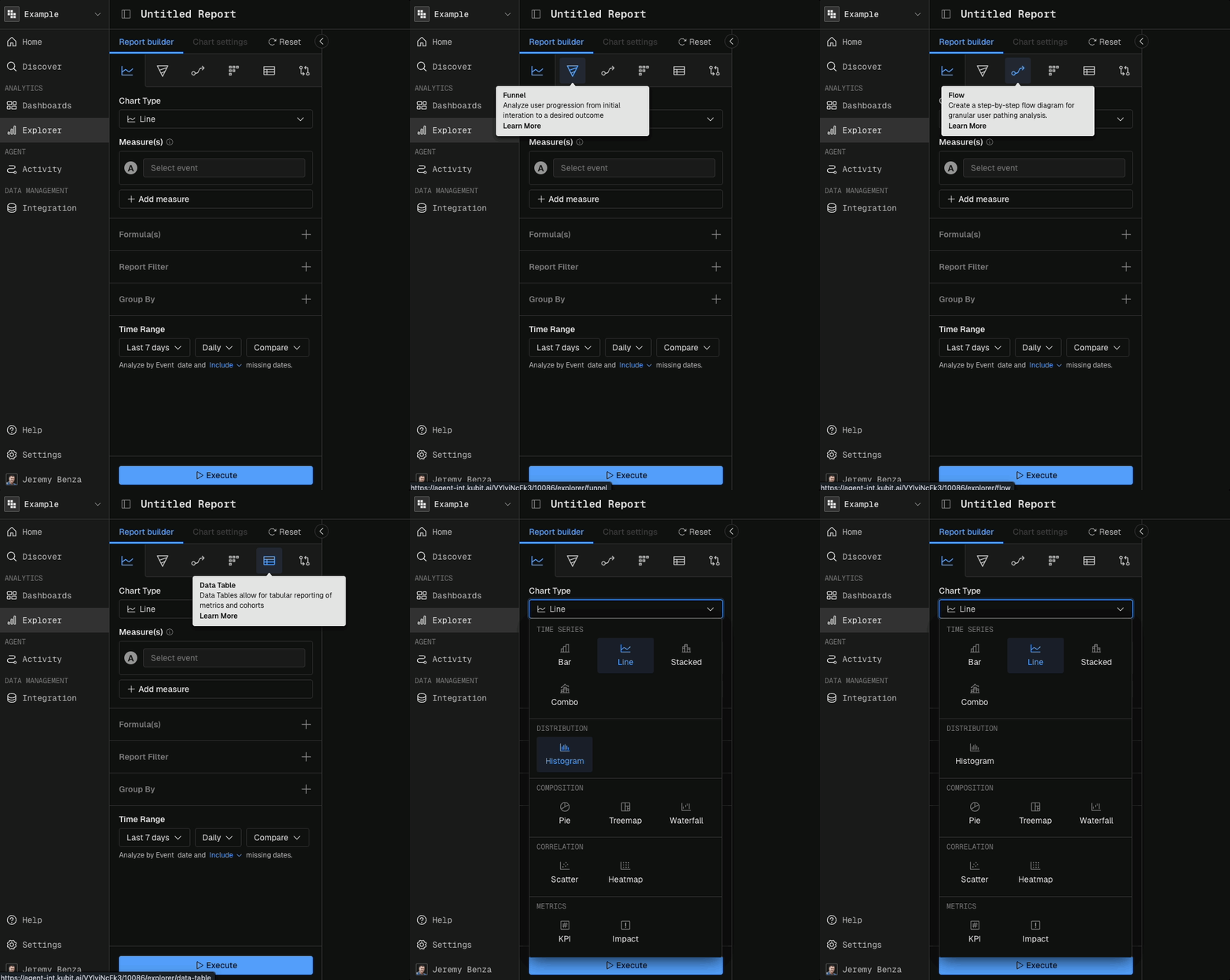
Choose the report type that matches your question. Kubit offers six, each tuned to a different kind of question:
Query — A flexible chart for understanding agent behavior. Answers questions like "how many traces had latency over 5 seconds today?" Visualize as KPI, line, bar, histogram, scatter, or heatmap.
Funnel — Conversion and drop-off across the steps your agent walks users through (chat opened → intent expressed → resolved → confirmed). Shows exactly where users abandon.
Flow — The most common paths users actually take through your agent. For example: after a user expresses frustration, do they retry, escalate, or leave?
Retention — How cohorts (defined by a starting event) retain over time. For example: do users whose first session had a delight signal return more often than those with a friction signal?
Table — Pivot-table reporting. For example: agents × error type with count and avg cost in the cells. Or models × intent × p95 latency.
Significance — Statistical confidence on findings from a Measure, Query, Funnel, or Retention. Tells you whether a result is signal or noise — e.g., did last week's prompt rewrite actually reduce hallucinations?
Build a Query report
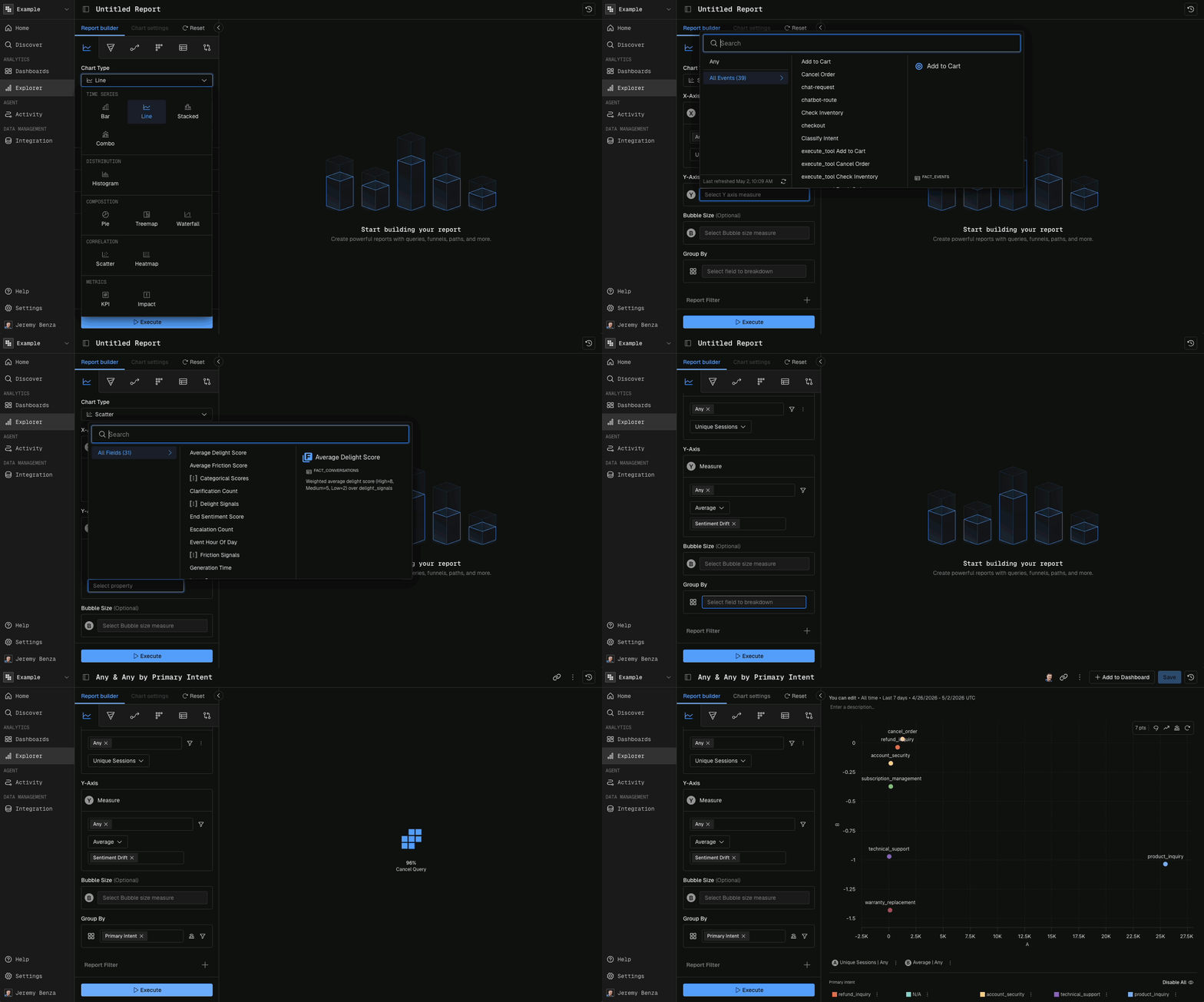
We'll start simple with a Query report and create a scatter plot of Intent vs. Satisfaction. Intent shows what users want; sentiment drift shows where they stopped getting it — without both, you're optimizing blind.
In Explorer, choose Query.
Pick the Scatter visualization.
Set the x-axis to Any (Unique Sessions) and the y-axis to Any (Average Sentiment Drift).
Group by Primary Intent.
Click Execute.
Take Action
Once the report runs, you have a few options:
Iterate — Adjust the builder and re-execute until the chart answers your question. Reports are immutable, so each execute creates a new report — you can't break the original.
Add to a dashboard — Click Add to Dashboard from the Share menu in the top-left to drop this report onto an existing dashboard, including any new dashboard you've created.
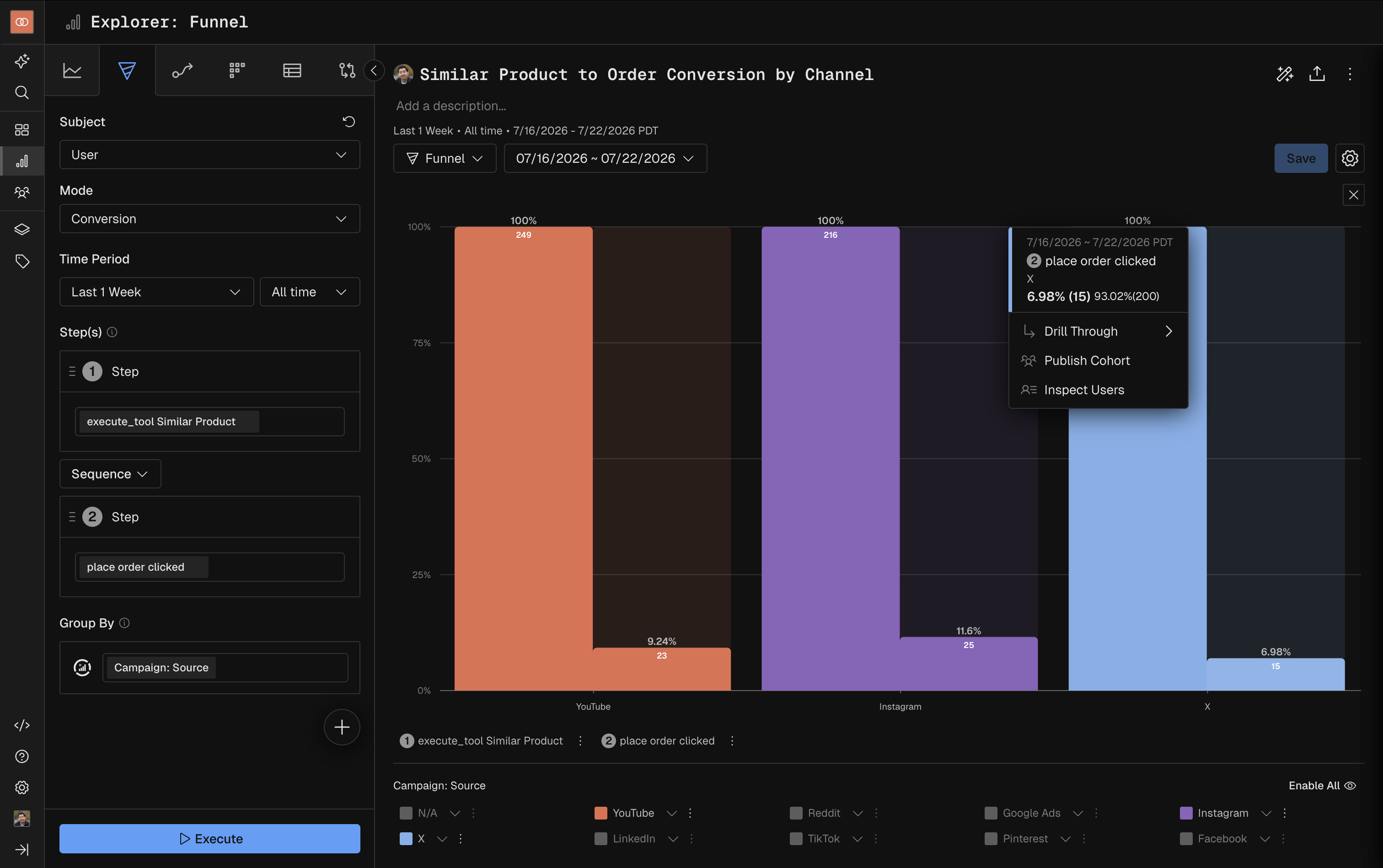
Publish Cohort — Hover any segment on the chart and publish the underlying group of users as a cohort you can reuse later.
Inspect Users — Hover any segment and click Inspect users to see the actual user IDs behind the data. Click any user ID to open their full profile and history.
Inspect Activity — Use the selected cohort as a filter to view the traces/events that took place.
Next steps
Bring your team into Kubit so they can build reports of their own — Invite Users to your workspace.