
Funnel Overview
When to Use a Funnel
A Funnel report is the right tool whenever you need to measure how entities (users, sessions, devices) progress through an ordered sequence of events — and where they drop off.
Use Case | Example |
|---|---|
Conversion optimization | Measure the drop-off rate from product page → add to cart → checkout → purchase to identify where buyers abandon. |
Onboarding analysis | Track sign up → email verification → profile setup → first action to find which onboarding step loses the most users. |
Feature adoption | See how many users who discover a feature go on to use it repeatedly: feature impression → first use → second use. |
Content or search quality | Measure search → click result → engage with content to evaluate whether search results lead to meaningful engagement. |
Support resolution | Track ticket opened → agent assigned → first response → resolution to measure support efficiency. |
AI agent evaluation | Measure prompt → intent classification → tool call → successful response to identify which stage of an AI workflow fails most often. |
Choosing the right mode:
Use Conversion when you care about what percentage makes it through each step.
Use Frequency when you care about how many attempts it takes before users convert (e.g., how many searches before a purchase).
Use Time to Convert when you care about how long each transition takes (e.g., time from sign-up to first purchase).
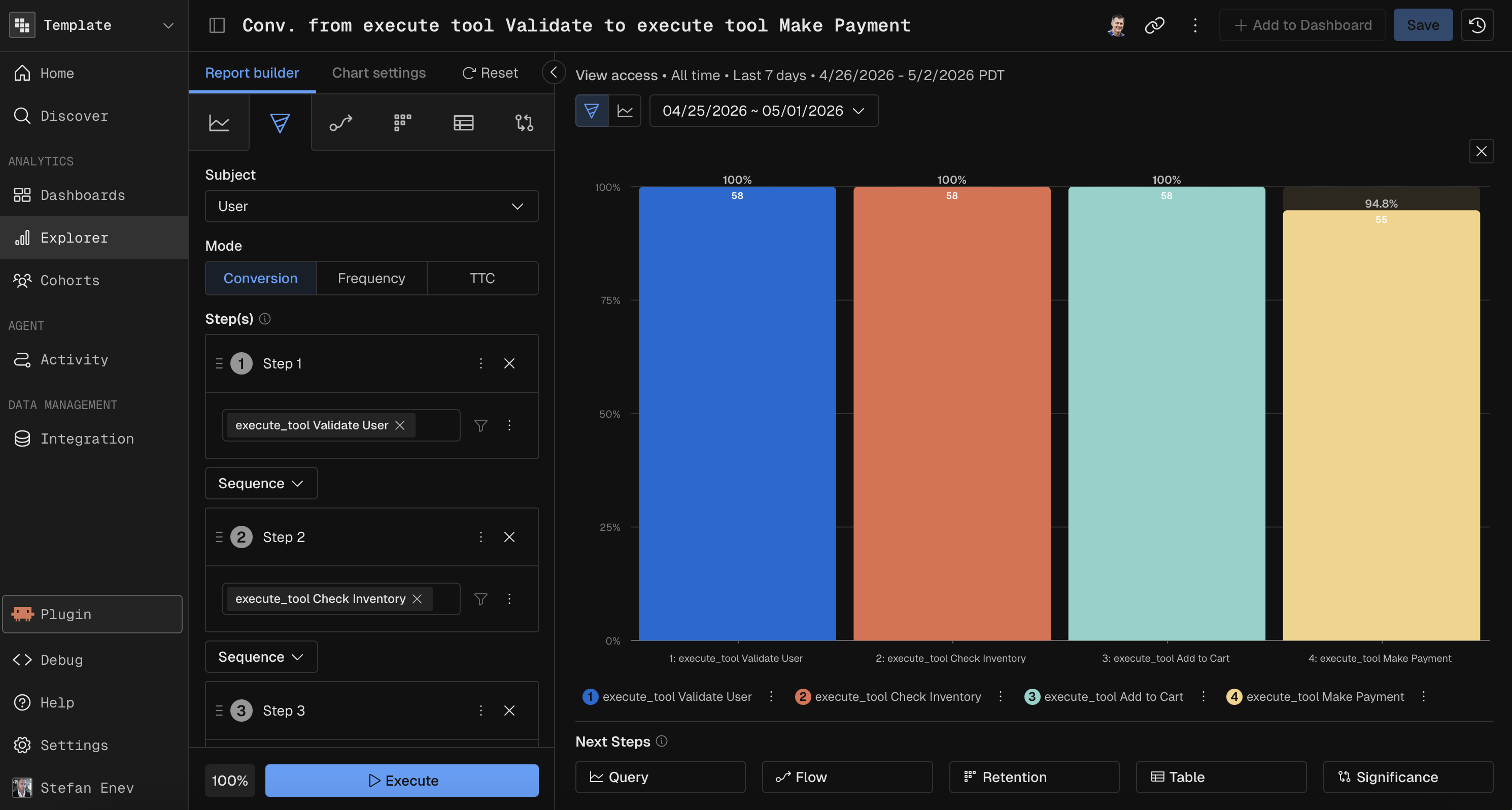
Subject
The Subject defines what entity progresses through the funnel. It determines the unit of analysis — whether you're counting unique users, unique devices, unique sessions, or something else at each step.
How It Works
When you select a Subject, every step in the funnel measures how many distinct instances of that entity completed the step's event. For example:
User subject → "How many unique users reached each step?"
Trace subject → "How many unique traces reached each step?"
Session subject → "How many unique sessions reached each step?"
Span subject → "How many unique spans reached each step?"
Available Subjects
Kubit provides four subject types:
Subject | Description | Identifies by |
|---|---|---|
User | The end user who initiated the trace | User ID |
Trace | A single end-to-end request or workflow | Trace ID |
Session | A group of related traces (e.g., a conversation) | Session ID |
Span | An individual operation within a trace | Span ID |
Choose the subject that matches the level of granularity you care about. For example, use User to measure how many distinct people complete a workflow, or Trace to measure how many individual requests make it through each stage.
Subject and Step Ordering
Each subject supports a specific set of funnel order options (Any, Sequence, Exact — see Steps section below). When you change the subject, the available step ordering options update to reflect what that subject supports.
Modes
Funnel reports support three modes, each answering a different question about how entities move through the funnel.
Conversion
Question: "How do users convert through each step?"
The default mode. Shows step-by-step conversion rates — what percentage of entities that entered the funnel completed each subsequent step.
Feature | Supported? |
|---|---|
Time granularity | Day, Week, Month, Quarter, Year, All Time |
Comparison | Yes |
Breakdown | Yes |
Cluster mode | Yes |
Bounce rate labels | Yes |
The chart displays bars for each step with conversion percentages. You can view both absolute numbers and relative conversion rates (step-to-step or relative to the first step).
Frequency
Question: "How many times did users trigger an event before converting to the next step?"
Shows the distribution of event frequency between consecutive steps. Instead of a time-based X-axis, the chart shows frequency buckets (e.g., "1 time", "2–5 times", "6+ times").
Feature | Supported? |
|---|---|
Time granularity | All Time only |
Comparison | No |
Breakdown | Yes |
Cluster mode | No |
Step selection | Select which step transition to analyze |
Frequency mode produces N-1 measures (one for each transition between consecutive steps). You select which step transition to view.
Time to Convert (TTC)
Question: "How long does it take users to convert between steps?"
Shows the distribution of elapsed time between consecutive steps. The chart displays time buckets with statistical overlays showing average and median time to convert.
Feature | Supported? |
|---|---|
Time granularity | All Time only |
Comparison | No |
Breakdown | Yes |
Cluster mode | No |
Conversion Window | Required |
Statistics | Average and Median displayed |
TTC mode requires a Conversion Window to be set (see the Steps section). You can view the time distribution for individual step transitions or for the entire funnel end-to-end.
Mode Quick Reference
Conversion | Frequency | Time to Convert | |
|---|---|---|---|
X-axis | Calendar dates | Frequency buckets | Time buckets |
Comparison | Yes | No | No |
Time granularity | Any | All Time only | All Time only |
Conversion Window | Optional | Optional | Required |
Statistics overlay | No | No | Yes (Avg, Median) |
Steps
Steps define the sequence of events that make up the funnel. Each step represents an event (or set of events) that the subject must complete to progress.
Defining a Step
Each step consists of:
Event condition(s) — one or more events that satisfy the step. When multiple events are added to a single step, any of them counts (OR logic).
Filters — optional property filters to narrow which event occurrences qualify (e.g., only events where
country = "US").Step name — optional custom label. If not provided, steps are auto-labeled "s1", "s2", etc.
Step Limits
Constraint | Value |
|---|---|
Minimum steps | 2 |
Maximum steps | 10 |
When only 2 steps remain, removing a step resets it to empty rather than deleting it — the funnel always maintains at least 2 steps.
Step Ordering (Funnel Order)
Between each pair of steps, you choose how strictly the ordering is enforced:
Order | Description |
|---|---|
Sequence | Steps must occur in order, but other events can happen in between. |
Exact | Steps must occur in exact order with no other tracked events in between. |
Any | Steps can occur in any order — the funnel checks that all steps happened, regardless of sequence. |
The available ordering options depend on the selected Subject — not all subjects support all orderings.
Step Options
Duplicate Step
Copy an existing step (including its event conditions and filters) and insert the duplicate immediately after. This is useful when you need a similar step with slight variations. Only available when the total step count is below 10.
Exclude Event
Add one or more excluded events to a step. Excluded events act as negative conditions — if the subject triggers an excluded event between the previous step and the current step, they are disqualified from the funnel at that point.
Constraint | Value |
|---|---|
Max excluded events per step | 5 |
Availability: Exclude events are only available when the step ordering for the previous transition is Sequence, or when configuring the first step. If the ordering is set to Any or Exact, excluded events are automatically removed.
Example use case: "Users who viewed a product and then purchased, without viewing the returns policy page in between."
Conversion Window (Per-Step)
Set a maximum time limit for the subject to complete a step after completing the previous one. If the subject doesn't complete the step within the window, they are counted as dropped off.
The conversion window is configured as a number + time unit (e.g., "24 hours", "7 days", "2 weeks").
Constraint | Details |
|---|---|
Available on | All steps except the first |
Depends on | Previous step's ordering must not be "Any" |
Required for | Time to Convert mode (TTC) |
Example: "Users must add to cart within 1 hour of viewing the product page."
Adding, Removing, and Reordering Steps
Add: Click "Add step" to append a new empty step (up to 10 total).
Remove: Click the remove action on a step. If only 2 steps remain, the step resets to empty instead.
Reorder: Drag and drop steps to change their position. The first step's conversion window is always reset when reordering occurs.
Extended Time
Extended Time extends the analysis window beyond the selected date range, giving more time for conversions to be counted.
Why Use Extended Time?
In a standard funnel, only events within the selected date range are counted. If a user starts the funnel near the end of the date range, they may not have enough time to complete later steps before the range ends — causing artificially low conversion at later steps.
Extended Time solves this by allowing conversions to be counted beyond the date range boundary.
How It Works
Extended Time extends the end date of the analysis window. Events that satisfy later funnel steps are counted even if they occur after the original date range ends.
Example: Date range is January 1–31 with 7 days extended time. Events through February 7 are counted for funnel completion, but only users who entered the funnel during January are included.
Prompting Kubit Through MCP
When using Kubit through MCP, you create Funnel reports by describing the steps and what you want to learn in natural language. The MCP server translates your request into the appropriate funnel configuration.
Effective Prompts
A good Funnel prompt specifies:
Steps — the sequence of events (use → arrows or "then" to separate)
Subject (if not User) — what entity to track (trace, session, span)
Mode (if not Conversion) — frequency or time to convert
Date range — the time window
Breakdown (if needed) — how to segment the funnel
Filters (if needed) — conditions to narrow the data
Examples by Complexity
Simple — basic conversion funnel:
"Show me a funnel from sign up to first purchase over the last 30 days"
Medium — with breakdown and date range:
"Create a funnel for search → product view → add to cart → checkout, broken down by device type, last 14 days"
Advanced — mode + window + comparison:
"What's the average time to convert from prompt to tool call to response? Build a time-to-convert funnel with a 1-hour conversion window for the last quarter"
Specialized — exclusions and extended time:
"Build a funnel from product view to purchase, excluding users who visited the returns page between steps, with 7 days extended time"
Tips
Use → arrows or "then" to define step order — Kubit interprets both as sequential steps.
Step ordering defaults to Sequence. Say "in exact order" for Exact, or "in any order" for Any.
Mode defaults to Conversion. Say "frequency funnel" or "time to convert funnel" to switch modes.
Breakdowns are automatically added when you say "by [dimension]" (e.g., "by country", "by model").
Exclusions are inferred from phrases like "excluding users who [event]" or "without [event] in between."
Conversion windows are inferred from "within [time]" (e.g., "within 1 hour", "within 7 days").