
Dashboards
Get oriented with dashboard, refresh data, drill into a report, and create a new dashboard of your own.
Open Dashboard
Switch to Kubit Demo - Agent Demo workspace. Let's use the Demo dashboard as an example.
In the left navigation, click Dashboards.
Open Demo.
This is your default view into how AI traces perform in production. In a few minutes you'll see:
Health: sessions, resolution, sentiment, cost-per-resolved, trends
Agent Performance, User Experience, and Diagnostics: scorecard, friction, errors, tool failures, latency
Intent, Sentiment and Resolution: goals, stuck points, delights, retention
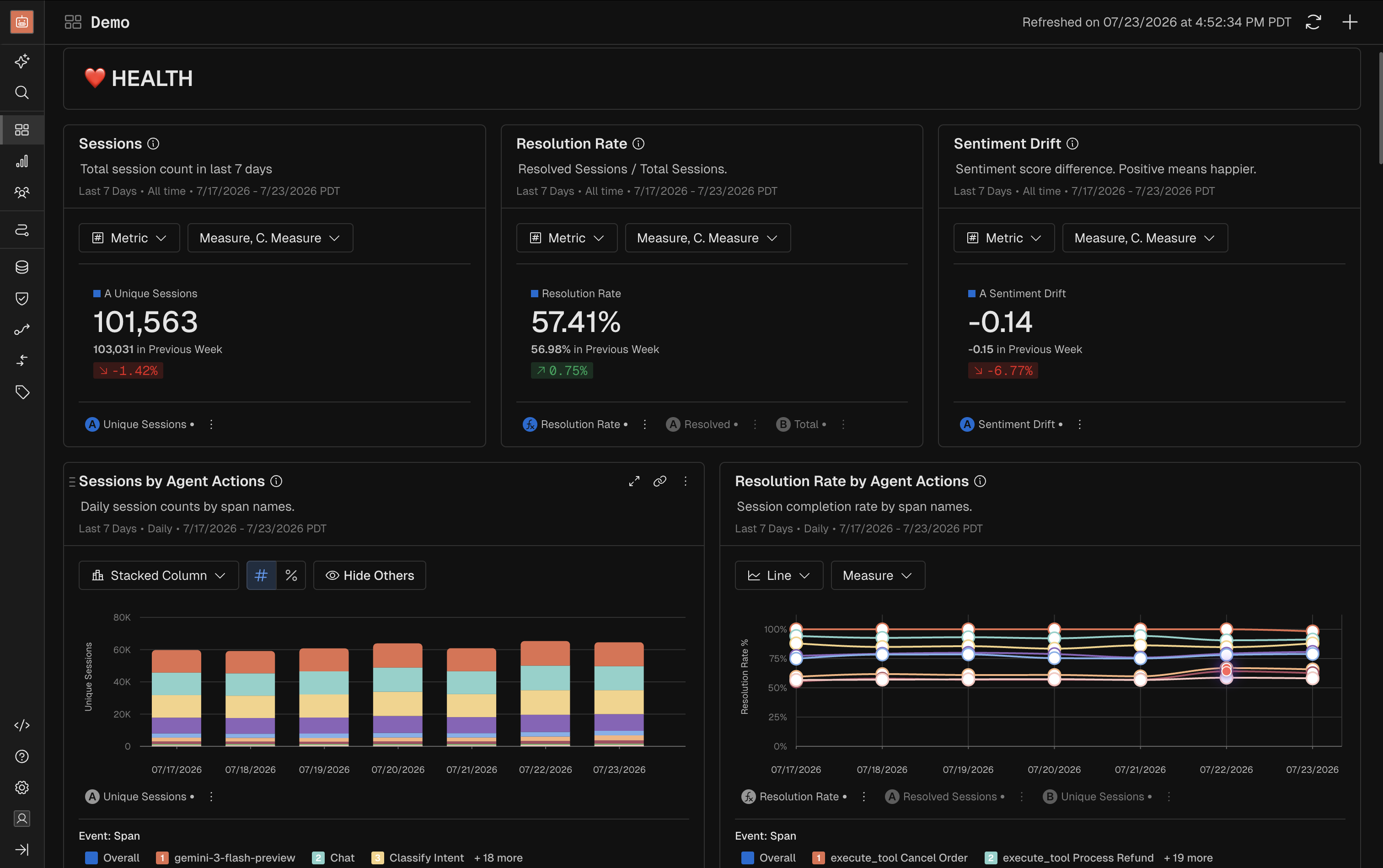
Refresh
Dashboards in Kubit are not live by default — what you see on screen is the data from the last refresh.
In the top-right corner of the dashboard, click the refresh icon.
Wait for the reports to reload with the latest data.
Drill into a Report
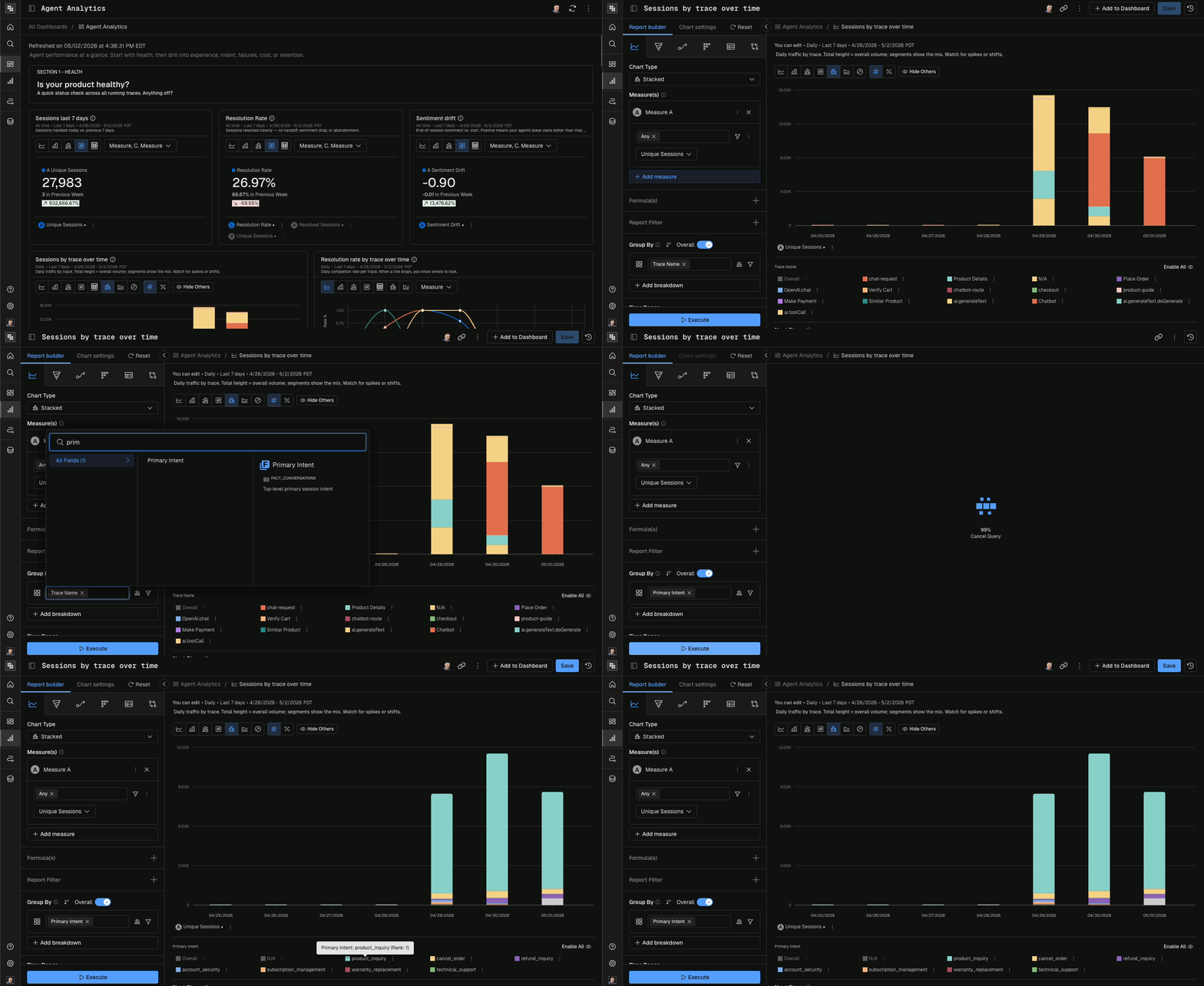
Click into any report on the dashboard to inspect the underlying data, change filters, or jump to the users behind a segment.
Drill in freely — reports in Kubit are immutable. Every execution creates a new report, so any filter, breakout, or tweak you make from a drill-in never overwrites the original or affects what your teammates see.
Create a New Dashboard
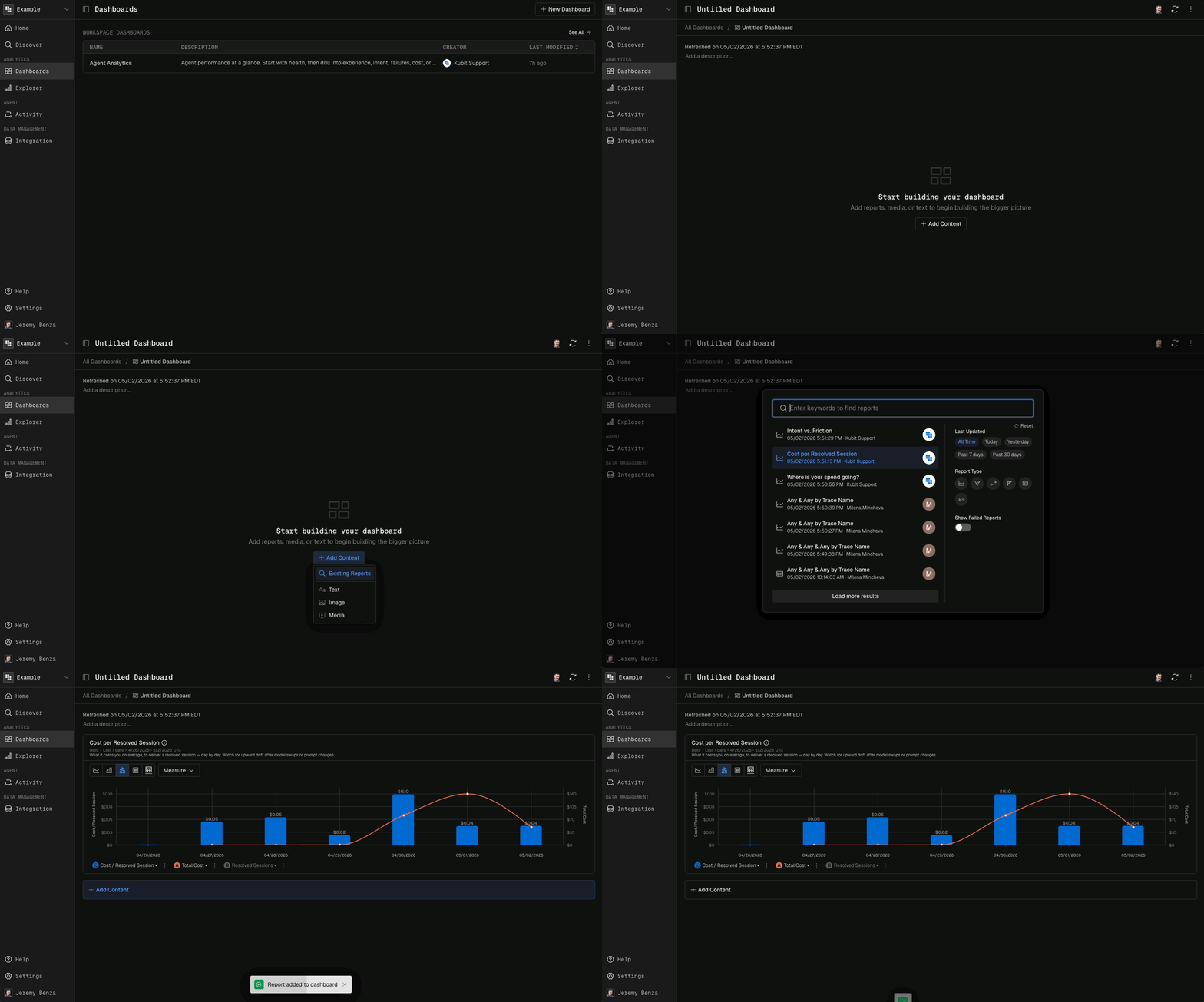
When you want your own view, you can create a new dashboard in your own workspace.
From the Dashboards list, click New Dashboard in the top-right.
Name your dashboard.
Add existing reports, or create a new report from scratch.
Next steps
Build your first report and add it to your new dashboard — see Reports.