
BigQuery
Connect Kubit directly to BigQuery so it queries your data in place. You enable the API, create a read only service account for Kubit, and share the credentials. Nothing is copied out of your project.
Steps
1. Enable the BigQuery API
If the BigQuery API is already enabled, skip this step.
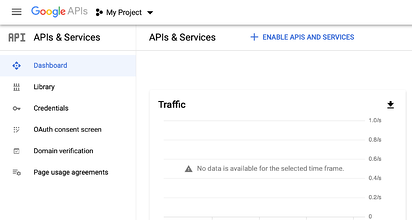
Go to Google Cloud APIs and Services and click Enable APIs and Services.
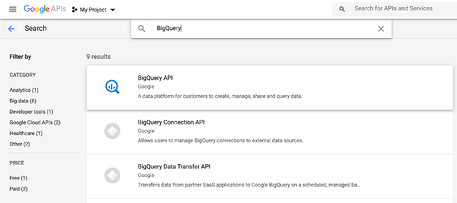
Search for BigQuery API.
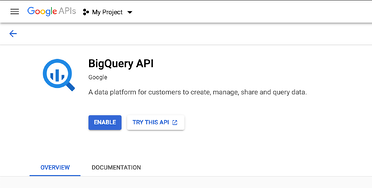
Select it and click Enable.
2. Create a service account
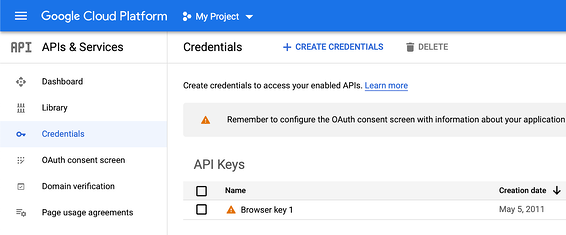
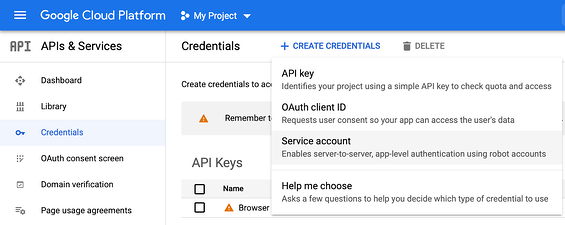
Open the Credentials page in the Google Cloud API Manager, selecting your target project if needed.
Click Create Credentials and choose Service account.
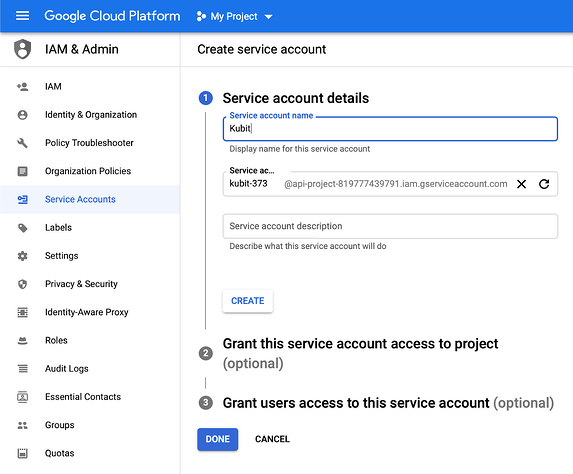
Name the account Kubit and click Create. The
Service account emailshown is your Kubit Service Account Email.Assign these BigQuery roles to the Kubit service account:
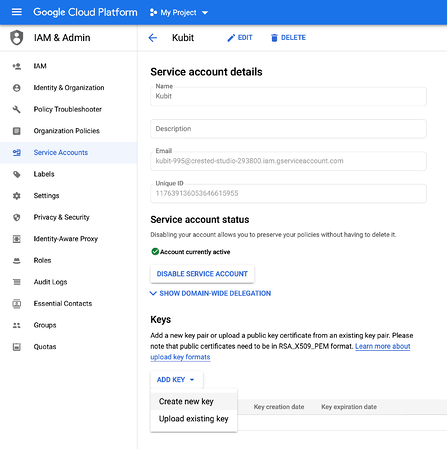
Select the new service account, open Keys, click Add Key, and create a new key.
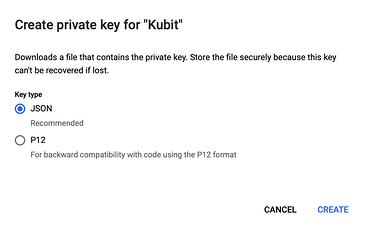
Choose JSON and click Create. A JSON private key downloads to your computer. Store it in a secure, private location.
3. Share connection details
Share the following with the Kubit team using a secure channel such as a password manager:
The JSON private key you generated.
Your dataset id.
Your dataset region and zone.
Next steps
Understand the model: Warehouse Native
Allow Kubit through your firewall: IP Whitelist