Invite Users
Add teammates to your Organization, assign the right role, and manage invitations and access over time. You can invite users at any time — and there's no harm in inviting a few coworkers into the Example workspace just to play around together before connecting real data.
Manage team
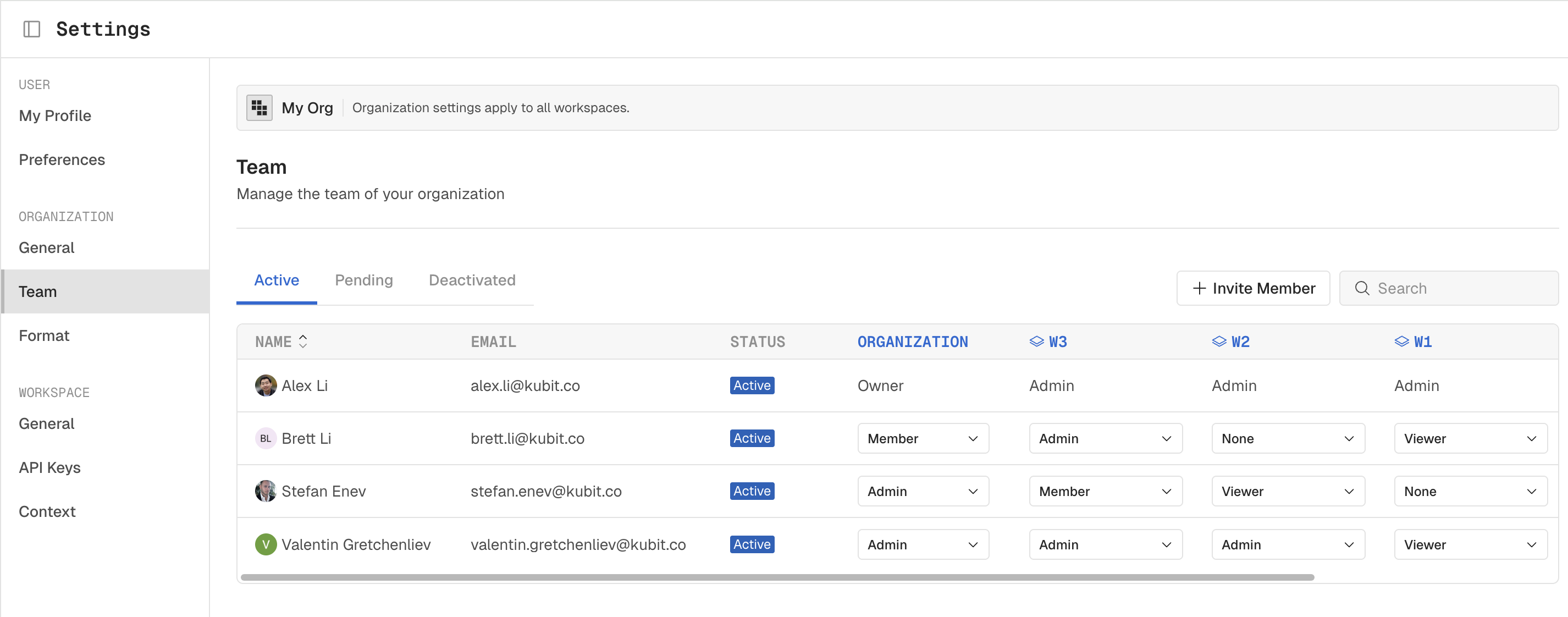
Teammates are managed at Organization level, with separate roles for Org and each Workspace.
In the bottom-left corner, click Settings.
Go to Organization - Team.
[Screenshot: Team in Settings]
Invite users
Click Invite Member.
Choose an Organization Role (Admin, Member, etc, detailed permission below)
Organization Role will be this user's default role to all Workspaces within this Org. If you want to restrict access at workspace level, select the lowest role "None" or "Viewer" here.
Enter one or more email addresses separated by comma.
Click Invite.
[Screenshot: Invite modal with role selector and email field]
Your teammates receive an email invitation to join the org.
Organization Role
Organization Role controls how much administrative access a user has at the org level — billing, SSO, organization info, the team itself, and the audit log. CRUD means full Create/Read/Update/Delete access. R means read-only.
Feature | None | Viewer | Member | Admin | Owner |
|---|---|---|---|---|---|
Billing | — | — | — | — | CRUD |
SSO | — | — | — | — | CRUD |
Organization Info | — | — | — | R | CRUD |
Team | — | — | — | CRUD | CRUD |
Audit Log | — | — | — | R | CRUD |
In plain terms:
Owner — full control of the org. Manages billing, SSO, the team, and audit logs. Best for whoever's ultimately accountable for the account.
Admin — manages the team (invite, edit, deactivate users) and can read org info and the audit log. Cannot change billing or SSO.
Member — standard product user. Builds reports, runs analysis, uses the product day-to-day. No org-admin rights.
Viewer — read-only. Sees dashboards and reports without modifying them. No org-admin rights.
None — no administrative access. Use for tightly scoped accounts where access is granted elsewhere.
Workspace Role
The Organization Role selected during invite will be the default Workspace Role for that user. Once user joins the Org, you can go back to Team to assign their roles for each Workspace.
Workspace Role controls user's access permission for functions within each workspace:
Feature | None | Viewer | Member | Admin | Owner |
|---|---|---|---|---|---|
Workspace | — | — | — | CRU | CRUD |
Integration | — | — | — | CRU | CRUD |
API Key | — | — | — | CRU | CRUD |
Report | — | R | CRU | CRUD | CRUD |
Dashboard | — | R | CRU | CRUD | CRUD |
Data Dictionary | — | R | R | CRUD | CRUD |
Pending invitations
Invitations that haven't been accepted yet show up as Pending on Team. You can act on them at any time:
Find the pending invite in the list.
Click Resend to send the invitation email again — useful if it got buried in someone's inbox.
Click Cancel to revoke the invitation entirely — useful if you sent it to the wrong address or the person no longer needs access.
[Screenshot: Team tab with a pending invitation row, Resend and Cancel actions visible]
Deactivate a user
When someone leaves the team, deactivate them instead of deleting. Their access is revoked immediately, but their history stays intact in the audit log.
In the Team tab, find the user.
Open the row's actions menu and click Deactivate.
Confirm.
[Screenshot: user row with the Deactivate option in the actions menu]
You can find the same user in Deactivated tab and reactivate them later if they return.
Next steps
Invite a couple of teammates into the Example workspace or Integrate your Project and start analyzing your own data.